
Magento Login provides direct access to the admin panel, making it simple to manage your eCommerce platform effectively. This tutorial will walk you through logging into the Magento backend, enabling you to handle essential tasks for your online store, such as managing products, processing orders, and overseeing customer data.
Essentials for Magento Login
Magento Store URL:
To initiate your Magento login, you’ll need the store’s URL, typically provided by your hosting provider. This URL is essential for accessing the Admin Panel.
Admin Username and Password:
Ensure you have your Magento Admin username and password ready, as these credentials are required for a successful Magento login.
How to Log into the Magento Admin Panel
1.Open Your Web Browser
Launch a compatible web browser such as Google Chrome, Mozilla Firefox, Safari, or Microsoft Edge.
Note: For an optimal experience, ensure your browser is up-to-date.
2. Enter the Admin Panel URL
In the browser’s address bar, type the URL for your Magento Admin Panel, typically formatted as https://yourstore.com/admin. Replace “yourstore.com” with your store’s actual domain name.
3. Go to the Login Page
Press Enter or click Go to navigate directly to the Magento Admin login page.
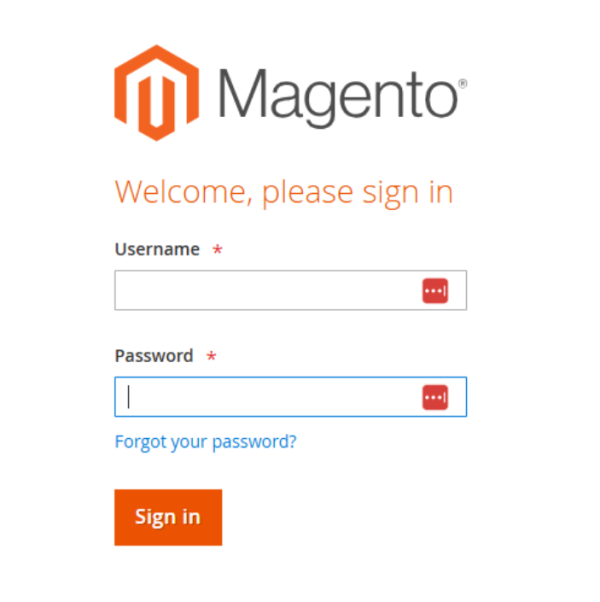
4. Enter Your Credentials
Locate the fields for your username and password on the login page.
Note: Set up your admin account in advance to ensure you have access to these credentials.
5. Complete Login
After filling in your username and password, and completing any required CAPTCHA, click the Login or Sign In button to access the Admin Panel.
Key Functions of the Magento Login Admin Backend
1. Customizing Store Appearance
Through the Magento Admin backend, you can tailor the look and feel of your online store, adjusting themes, templates, and design elements to perfectly align with your brand’s image.
2. Managing Customers and Customer Groups
Efficient customer management is vital for any eCommerce business. In the Magento backend, you can create, edit, or delete customer accounts, and organize customers into specific groups, enhancing your marketing and service strategies.
3. Product Management and Sales Control
The Magento Admin backend simplifies product management, allowing you to add new products, update existing listings, and oversee your entire sales process. Track orders, process payments, and ensure seamless transactions with ease.
4. Setting Initial Configurations
During setup, you can configure essential settings in the Magento backend to meet your unique business needs. This initial customization step tailors the platform to your operational requirements.
5. Creating Promotions and Discounts
The Magento Admin backend enables you to design promotions, special offers, and discounts to boost sales and customer engagement. Easily create compelling campaigns that retain and attract customers.
6. Newsletter Management Tools
Magento offers a powerful newsletter management tool within the admin backend, allowing you to create, distribute, and track newsletters to keep customers informed about new products, promotions, and updates.
7. Detailed Reporting for Informed Decisions
Access comprehensive reports on sales trends, customer behaviors, and other key metrics directly from the Magento backend. These insights empower you to make data-driven decisions to drive business growth.
Optimize the Magento Login Process
Enhance your Magento login experience with these essential tips:
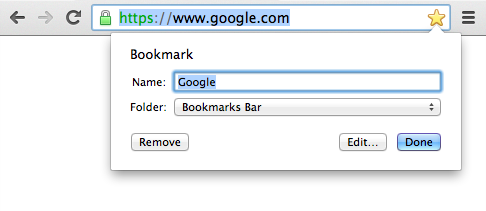
Bookmark the Admin Panel URL
Save time on future logins by bookmarking your Magento Admin Panel URL in your browser. This simple step can streamline access, making your Magento login faster and more efficient.
Use Strong, Unique Passwords
Protect your Magento store by using a strong, unique password for your admin account. Include a mix of letters, numbers, and special characters to strengthen security and safeguard your credentials.
Enable Two-Factor Authentication (2FA)
Add an extra layer of security to your Magento login by enabling Two-Factor Authentication (2FA). This feature, accessible in the Admin Panel settings, provides added protection against unauthorized access.
Regularly Update Your Password
For optimal security, consider updating your admin password regularly. Frequent password changes reduce the risk of unauthorized access and help keep your Magento login secure.
Following these steps can optimize the Magento login process, ensuring both efficiency and robust security for your eCommerce platform.
Troubleshooting Common Magento Login Issues
Even with a seamless Magento login setup, occasional issues may arise. Here’s how to resolve some common login problems:
Forgotten Password
If you’ve forgotten your password, use the “Forgot your password?” link on the login page to reset it. Ensure you have access to the registered email associated with your admin account.
CAPTCHA Errors
CAPTCHA can sometimes create login barriers. If you encounter repeated errors, try clearing your browser cache or cookies. If the issue persists, verify that your CAPTCHA settings align with your site’s configuration.
Locked Accounts
After multiple failed login attempts, Magento may lock your account for security. If this happens, wait for the account to unlock or contact your hosting provider or admin support for assistance.
Best Practices for Magento Admin Security
Securing your Magento Admin login is essential for protecting your store. Implement these practices for enhanced security:
Limit Login Attempts: Set up a limit on login attempts to prevent brute-force attacks. This adds an additional layer of protection to your admin panel.
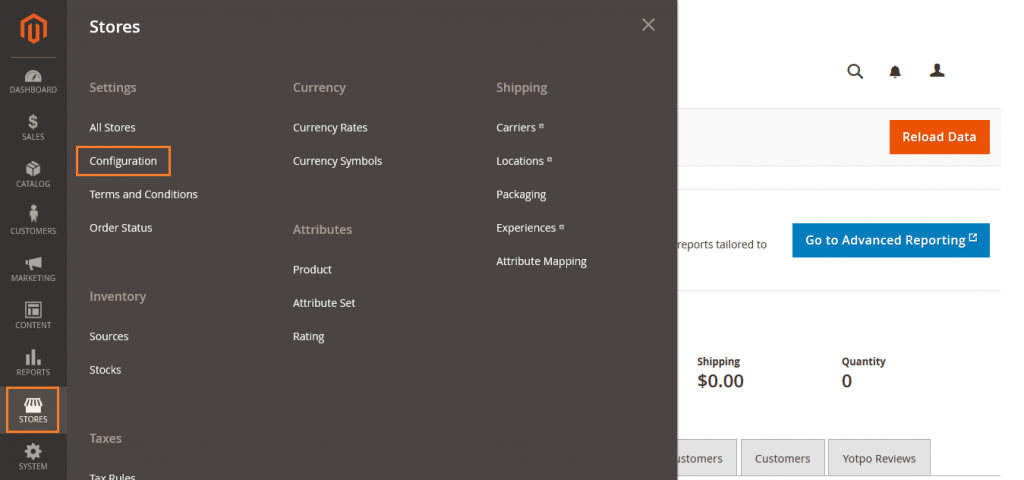
- Access Security Settings: Log in to the Magento Admin Panel and go to Stores > Configuration > Advanced > Admin.
- Set Login Attempt Limits: Find the Security section, where you can set a limit on the number of login attempts allowed. Set this to a reasonable number to prevent brute-force attacks.
- Save Changes: Click Save Config to apply the changes.
IP Whitelisting: Restrict access to specific IP addresses, allowing only trusted networks to access the Magento Admin Panel.
- Go to Security Settings: In the Magento Admin Panel, go to Stores > Configuration > Advanced > Admin.
- Enable IP Whitelisting: Look for the Security options, where you’ll find a field for “Allowed IPs.” Enter the IP addresses you want to allow access, such as those of your team or trusted networks.
- Save Changes: Click Save Config to restrict access to the specified IP addresses only.
User Role Permissions: Configure user roles carefully, ensuring each team member only has access to the features they need. This minimizes risks from unauthorized access within your admin environment.
- Navigate to User Roles: In the Admin Panel, go to System > Permissions > User Roles.
- Edit or Create Roles: Select an existing role or click Add New Role to set up permissions. Assign access to specific features as needed, ensuring each team member only has permissions for their responsibilities.
- Assign Roles to Users: Under System > Permissions > All Users, assign the appropriate role to each user to limit access.
- Save Changes: Once roles are configured, save your settings to enforce role-based permissions.
Setting Up Alerts for Unusual Login Activity
Stay informed about potential threats by configuring alerts for unusual login activity:
Enable Notifications: Many Magento setups allow you to set up alerts for suspicious login attempts. These notifications help you quickly identify and respond to unauthorized access.
- Navigate to Security Settings: Go to Stores > Configuration > Advanced > Admin.
- Enable Login Notifications: In the Admin section, look for Security settings and toggle the option for “Login Notifications” or similar feature (depending on your Magento version) to enable alerts for suspicious activity.
- Save Changes: Click Save Config to apply your new settings.
Review Security Logs Regularly: Check your admin panel’s security logs for any unusual login attempts or patterns.
- Go to Reports: In the Magento Admin Panel, navigate to Reports > Admin Actions Log (or Security > Login Attempts in some versions).
- Review Login Entries: Look for any unusual patterns, such as repeated failed attempts or logins from unfamiliar IP addresses.
Conclusion
Magento login provides secure and streamlined access to your store’s backend, empowering you to manage products, orders, and customer information effectively. Securing and optimizing the Magento login process is essential for efficient and safe store management. By setting up login attempt limits, IP whitelisting, and customized user roles, you create a more robust barrier against unauthorized access.For a seamless Magento experience, you may also want to explore advanced server solutions to boost performance and scalability. Implementing these steps will not only protect your Magento Admin Panel but also ensure a smoother, more effective experience for you and your team.
Looking to optimize your Magento store?
- By Victoria