
Managing an ecommerce store can be challenging, but accessing your Magento Admin Panel shouldn’t be. Your admin panel is the control centre for your entire store, and knowing how to log in securely and efficiently is the first step to successful store management. In this comprehensive guide, we’ll break down the Magento login process, provide troubleshooting tips, and share best practices to enhance your login security—all while making it simple and accessible for you.
What You Need Before Logging In
Admin URL
This is the unique web address for your Magento admin page, typically provided during the installation of your Magento store. Example: https://yourstore.com/admin. For security reasons, many store owners customize this URL.
Admin Username and Password
These credentials are created during the setup of your Magento store. Keep them secure and avoid sharing them.
Updated Browser
Use a modern browser such as Google Chrome, Mozilla Firefox, Safari, or Microsoft Edge to ensure compatibility and smooth operation.
Two-Factor Authentication (2FA) (if enabled)
Some Magento installations require a secondary authentication step, such as a verification code sent to your email or an authenticator app.
How to Log In to Your Magento Admin Panel
1. Open Your Browser
Launch a trusted and updated browser on your device.
2. Enter Your Admin URL
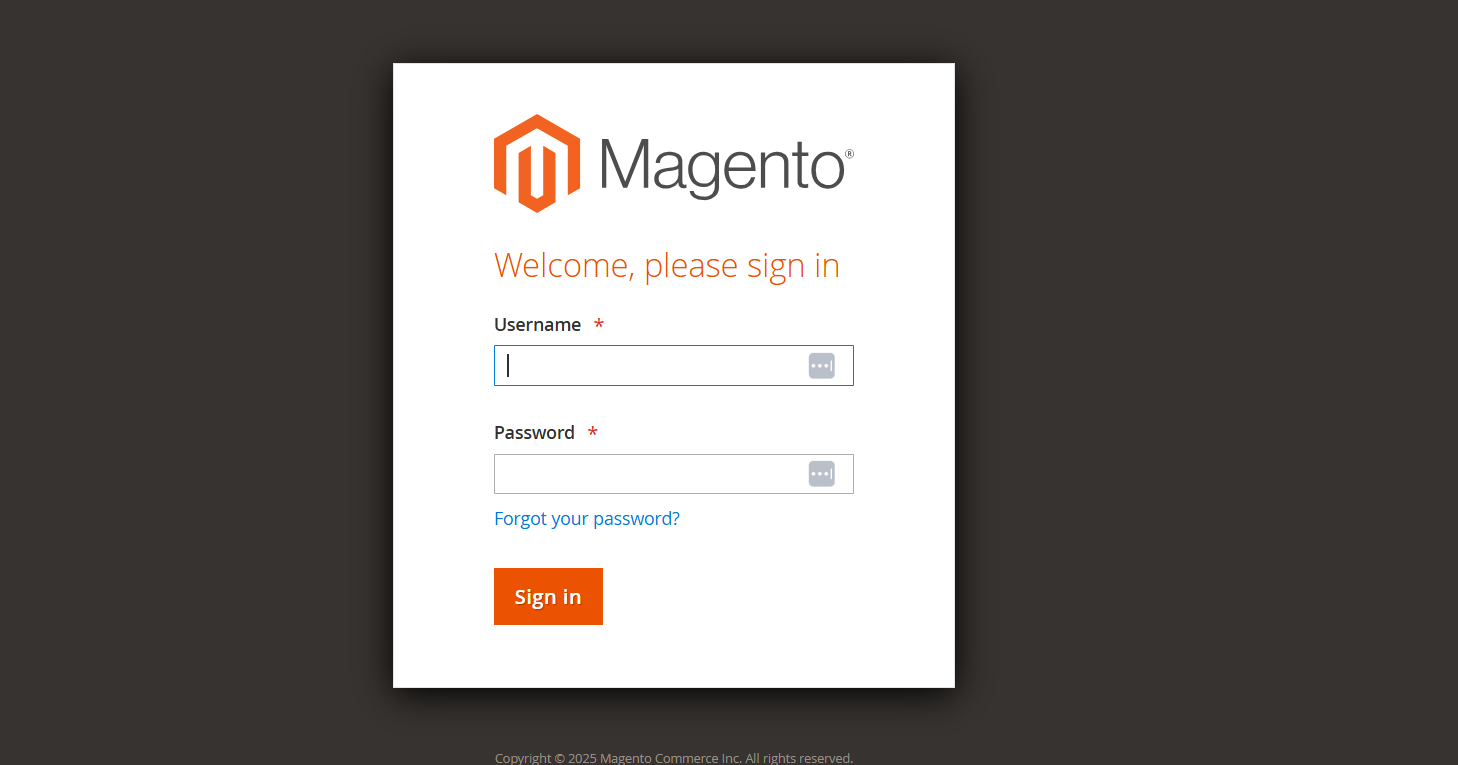
Type your store’s admin URL (e.g., https://yourstore.com/admin) in the address bar and hit Enter. If your admin URL has been customized for security purposes, ensure you use the correct one.
3. Input Your Credentials
On the login page:
- Enter your username in the first field.
- Enter your password in the second field.
4. Complete CAPTCHA (if enabled)
If CAPTCHA is enabled, solve the challenge provided to verify your identity.
5. Verify Two-Factor Authentication (if applicable)
Enter the 2FA code sent to your email or authenticator app.
6. Click “Sign In”
Press the login button to access your admin dashboard.
If entered correctly, you’ll be directed to the Magento Admin Panel, where you can manage your store efficiently.
Enhancing Magento Login Security
1. Customize Your Admin URL
Changing the default admin URL is one of the simplest yet most effective ways to enhance security. By modifying the admin URL, you make it harder for attackers to find your login page.
How to Change Your Admin URL:
During Installation: When installing Magento, you’ll be prompted to enter a custom admin URL.
After Installation:
- Navigate to Stores > Configuration > Advanced > Admin in your Magento backend.
- In the Admin Base URL section, you’ll see the field to input a new admin URL.
- Enter your desired URL (e.g., www.yourstore.com/custom-admin).
- Save the changes and clear the cache by going to System > Cache Management.
By changing the default /admin to something unique, you add a layer of obscurity to your site’s login process, deterring attackers from easily finding your admin page.
2. Enable Two-Factor Authentication (2FA)
Two-factor authentication (2FA) adds a second layer of protection to your login process. This means that in addition to your password, you’ll also need to verify your identity using another method (e.g., a code sent to your email or an app like Google Authenticator).
How to Enable Two-Factor Authentication:
- Go to Stores > Configuration > Security.
- In the Two-Factor Authentication section, enable 2FA by selecting “Yes.“
- You’ll then be prompted to configure your 2FA method, such as linking a mobile authenticator app.
- Save your settings.
Once 2FA is enabled, any admin login will require both your password and a verification code, ensuring that even if a hacker gets your password, they can’t access your admin account without the second factor.
3. Use Strong, Unique Passwords
A strong password is critical for securing your admin account. Avoid common phrases or predictable patterns and create a password that combines a mix of uppercase and lowercase letters, numbers, and special characters.
Tips for Creating Strong Passwords:
- Use at least 12 characters.
- Include a mix of letters, numbers, and special characters.
- Avoid using dictionary words or predictable patterns (like password123).
- Consider using a password manager to store and generate complex passwords securely.
Remember to change your password regularly, and don’t reuse passwords across different platforms.
4. Limit Login Attempts
Brute-force attacks, where attackers attempt multiple login attempts using various combinations, can be mitigated by limiting the number of failed login attempts.
How to Limit Login Attempts:
- Go to Stores > Configuration > Advanced > Admin.
- In the Security section, look for the Maximum Number of Login Failures field.
- Set a reasonable number (e.g., 5 or 10 attempts) before the system locks the user out temporarily.
- You can also configure the Lockout Time to define how long the system will block the user after the maximum attempts are reached.
- Save the settings.
This feature helps protect your Magento store from automated attacks by locking out users who make too many unsuccessful login attempts.
5. Monitor Admin Activity
Keeping an eye on admin activity logs can help you spot unauthorized access attempts or suspicious behavior early on. Regular monitoring ensures that you’re alerted to any unusual actions, such as login attempts at odd hours or from unfamiliar IP addresses.
How to Monitor Admin Activity:
- Go to System > Permissions > All Users in your Magento backend.
- Select a user to view the Activity Log and check for any unauthorized or suspicious actions.
- You can also install third-party extensions that offer more advanced monitoring and alerts for abnormal admin activity.
By frequently reviewing these logs, you can identify and investigate potential threats to your store’s security, such as unauthorized logins or changes made to sensitive configurations.
Troubleshooting Common Magento Login Issues
Forgotten Password
If you’ve forgotten your password, follow these steps:
- Click the “Forgot Your Password?” link on the login page.
- Enter the email address associated with your admin account.
- Check your email for the password reset link.
- Follow the instructions to reset your password and log in again.
Incorrect Admin URL
If you can’t access your admin URL:
- Confirm that you’re using the correct URL.
- Check your Magento installation settings for the customized admin path.
- Contact your hosting provider if you’re unsure.
CAPTCHA Issues
If CAPTCHA fails repeatedly:
- Ensure cookies are enabled in your browser.
- Clear your browser cache and try again.
- Disable CAPTCHA temporarily via the database if necessary (use this as a last resort).
Two-Factor Authentication Problems
If 2FA codes aren’t working:
- Check your email or authenticator app for the latest code.
- Ensure your device’s time is synced correctly to avoid code mismatches.
Exploring the Magento Admin Panel
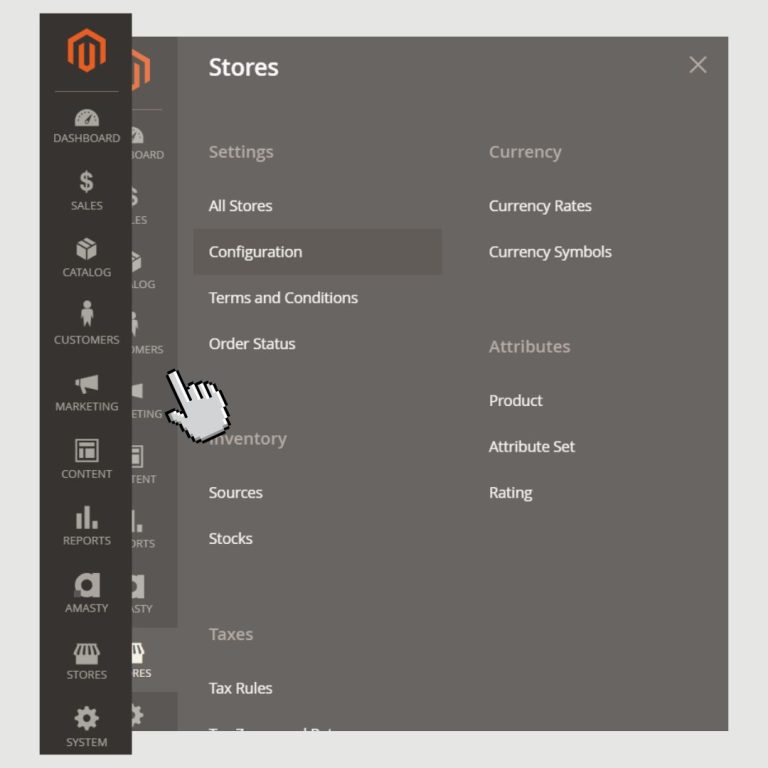
- Dashboard: View sales, orders, and customer insights.
- Sales: Manage orders, invoices, shipments, and payments.
- Catalog: Handle products, categories, and inventory.
- Customers: Manage customer accounts and groups.
- Marketing: Set up promotions, SEO, and newsletters.
- Content: Customize themes, pages, and layouts.
- Reports: Track sales, customers, and performance.
- Stores: Configure settings, taxes, and payment options.
- System: Manage users, permissions, backups, and integrations.
Pro Tips for Magento Login Efficiency
Pro Tips for Magento Login Efficiency
Save your admin URL as a bookmark in your browser for quick access.
Enable Auto-Fill
Use a secure password manager to auto-fill your admin credentials while keeping them encrypted and safe.
Regularly Update Your Credentials
Change your password periodically to maintain security and prevent unauthorized access.
Keep Software Updated
Ensure your Magento installation and extensions are always up to date to benefit from the latest security patches.
Frequently Asked Questions
Q1: What should I do if I forget my Magento admin password?
On the login page, click the “Forgot Your Password?” link. Enter your associated email address, and you’ll receive instructions to reset your password.
Q2: How can I enhance the security of my Magento Admin Panel?
Implement strong, unique passwords, enable Two-Factor Authentication (2FA), and consider using a Web Application Firewall (WAF) to monitor and filter HTTP traffic.
Q3: Can I customize the appearance of my Magento Admin Panel?
Yes, the Admin Panel allows you to adjust themes, templates, and other design elements to align with your brand’s identity.
Q4: How do I manage customer groups in Magento?
Within the Admin Panel, navigate to the customer management section. Here, you can create, edit, or delete customer accounts and categorize them into different groups.
Q5: What are the benefits of enabling Two-Factor Authentication (2FA) in Magento?
Enabling 2FA adds an extra layer of security, requiring a second form of verification in addition to your password, thereby reducing the risk of unauthorized access.
Conclusion
A seamless Magento login process is the foundation of effective store management. By following this guide, you can simplify access to your admin panel while enhancing security and troubleshooting common issues. Remember, your admin panel is the heart of your Magento store, so prioritize security and efficiency to keep your ecommerce operations running smoothly.
Ready to take control of your Magento store? Bookmark your admin URL, strengthen your credentials, and log in with confidence today!
Magento Solutions for Enhanced Online Performance
- By Andrea Perez