
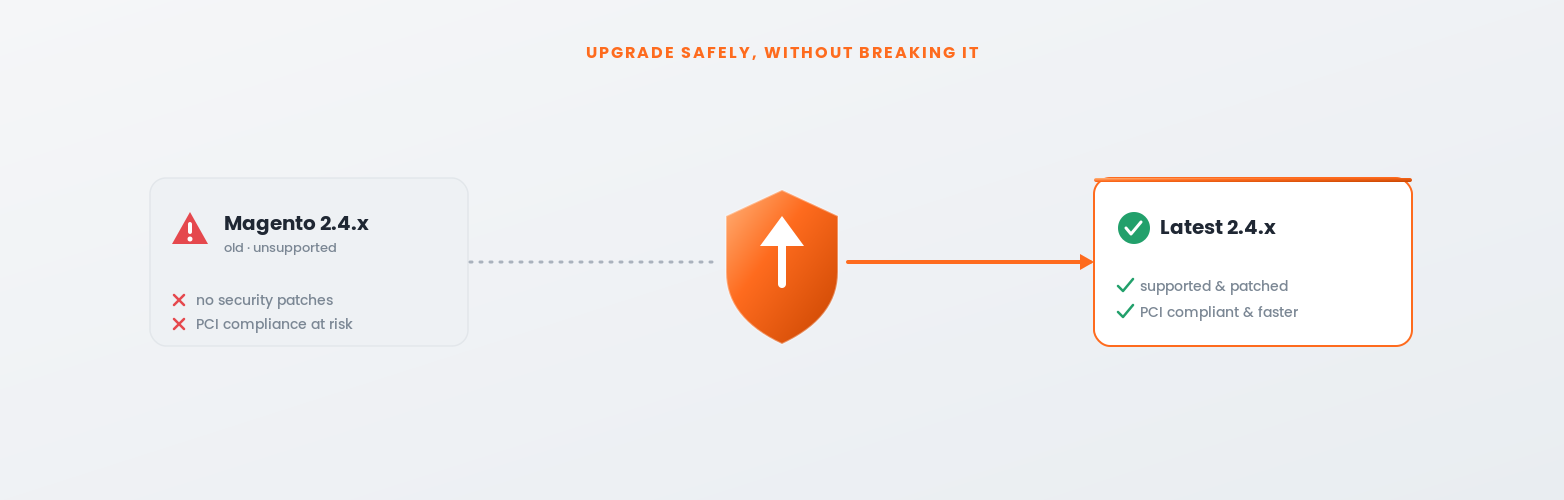
A Magento upgrade is one of those jobs that is easy to keep putting off, until an unsupported version leaves you without security patches, out of PCI compliance, or unable to install the extension you need. It does not have to be painful. Handled with a proper process, upgrading is a controlled, low-risk project that leaves you on a faster, safer, fully supported store. Rushed or skipped, it is how stores end up broken on go-live day. This guide walks through how to upgrade Magento 2 and Adobe Commerce safely, step by step: checking your version, auditing compatibility, testing extensions and custom code, and using staging properly so nothing breaks in production.
It is written so a store owner understands the process and a developer has a reliable checklist. The order matters, so follow it, and never upgrade straight on your live store.
Steps to a safe upgrade
Follow the order
Current supported release line
Stay on it
Compliance at stake if unsupported
Security patches
Surprises, with proper staging
Never upgrade on live
To upgrade Magento 2 or Adobe Commerce safely, follow five steps in order: check your current version and target the latest supported 2.4.x release; audit compatibility of your extensions, themes and custom code; set up a staging environment that mirrors production; run the upgrade there using Composer and test everything thoroughly; then deploy to live during a low-traffic window with a full backup and rollback plan ready. The Magento upgrade golden rule is simple: never upgrade directly on your live store. Analysis and testing on staging are what prevent a broken go-live.
Magento and Adobe Commerce follow a release lifecycle, and each version stops receiving security and quality patches after a set period. Running an unsupported version is the single biggest reason to upgrade: no patches means known vulnerabilities go unfixed, which also puts your PCI compliance at risk, because PCI DSS requires you to run supported, patched software. As Adobe puts it, keeping your project current is critical to staying secure, PCI-compliant and performant. For a store handling card payments, an out-of-date Magento is a liability, not just a technical debt.
Security is the urgent reason, but not the only one. Newer releases bring performance improvements, PHP and dependency compatibility, new features, and support for the latest extensions, many of which will not run on older versions. Falling behind compounds: the longer you leave it, the bigger the eventual jump, and the more likely you are to be forced into a rushed upgrade under pressure rather than a planned one. This connects directly to security, which we cover in our Magento security guide.
The good news is that a planned upgrade is routine when done properly. The five steps below turn it from a nerve-wracking gamble into a controlled process. If your store is several versions behind, or heavily customised, the jump is larger and closer to a small migration, but the same principles apply: analyse first, test on staging, and never touch production until you have proven the upgrade elsewhere. It is exactly the kind of work our eCommerce team handles as a matter of routine.
Start by confirming exactly what you are running and where you are heading. Check your current Magento version from the admin footer or by running bin/magento –version on the server, and note whether you are on Magento Open Source or Adobe Commerce, since the upgrade path differs slightly. Then identify the latest supported release on the current 2.4.x line as your target, so you upgrade to a version that will keep receiving patches.
How big the jump is shapes the whole project. A minor patch upgrade within the same minor version is quick and low-risk. Moving up several minor versions, or from an old release, is a larger undertaking that may require intermediate PHP, MySQL, Elasticsearch or OpenSearch and Composer updates along the way. Check the system requirements for your target version first, because the environment often needs upgrading before Magento itself.
The outcome of this step is a clear picture: your current version and edition, your target version, the size of the jump, and the environment changes it demands. Adobe’s official upgrade guide lists the exact prerequisites and tested software versions for each release, and is the authoritative reference to check against.
Adobe is explicit that analysis is the most important part of an upgrade, and this is where most broken go-lives are actually caused, or prevented. Before touching any code, audit everything that could conflict with the new version and produce a written upgrade checklist. Work through:
Third-party extensions. List every extension and check each vendor supports your target version. Outdated or abandoned extensions are the number one cause of upgrade failures; plan to update, replace or remove any that are not compatible.
Custom code and theme. Custom modules and your theme may rely on APIs or behaviour that change between versions. Review deprecations and breaking changes so you know what will need rework.
Environment and dependencies. Confirm PHP, MySQL or MariaDB, Elasticsearch or OpenSearch, Redis and Composer meet the target version’s requirements, and plan the order in which you update them.
Integrations. Payment gateways, ERP, PIM, shipping and marketing tools all need checking against the new version, since a broken integration on go-live can halt orders.
The deliverable here is a detailed checklist of every dependency, its compatibility status, and the work each one needs. A thorough audit is exactly what limits surprises later; skipping it is how a routine upgrade turns into an emergency.
With the audit done, the work of updating and testing begins, and it belongs on a staging copy of your store, never on live. Update each extension to its compatible version, rework custom code that relies on changed or deprecated APIs, and resolve conflicts one at a time so you can trace any issue to its cause. The Composer process itself has evolved on recent versions, using the magento/composer-root-update-plugin and the require-commerce command for Adobe Commerce, so make sure your team is working from the current instructions rather than an old runbook.
Then test everything, methodically. Walk the critical paths first: browsing, search, add to cart, the full checkout and payment, and account creation. Then test admin functions, order processing, every integration, and the areas your custom code touches. Check the storefront across devices and browsers, and confirm performance has not regressed. A structured test plan that covers each function is what separates a confident go-live from crossed fingers.
Take your time here. This phase surfaces the real-world issues the audit predicted and the ones it did not, and every problem you find and fix on staging is one that will not take down your live store. If a heavily customised store throws up major incompatibilities, that is useful information: it may point toward a rebuild or a platform migration rather than a straight upgrade, and it is far better to learn that now.
The single most important rule of any Magento upgrade is that it happens on staging first. Your staging environment should mirror production as closely as possible, same versions, configuration and, ideally, a recent copy of real data, so the upgrade you test is the upgrade you will run. Do the full upgrade there, complete your testing, and only when staging is stable and signed off do you plan the live deployment.
For go-live, prepare properly. Take a full, verified backup of the production database and files, and confirm you can restore it, an untested backup is not a backup. Schedule the deployment for a low-traffic window, put the store into maintenance mode, and have a documented rollback plan so you can revert quickly if something unexpected appears. Run the same upgrade steps you rehearsed on staging, then re-test the critical paths on production before removing maintenance mode.
The job is not finished at go-live. Monitor closely for the first days: watch error logs, performance, checkout and payments, and order flow, and keep support on standby to catch anything the tests missed. Upgrades are also the ideal moment to make them easier next time, by keeping the store closer to the latest version going forward. That ongoing discipline is exactly what a Magento support partner provides, so you never fall dangerously far behind again.
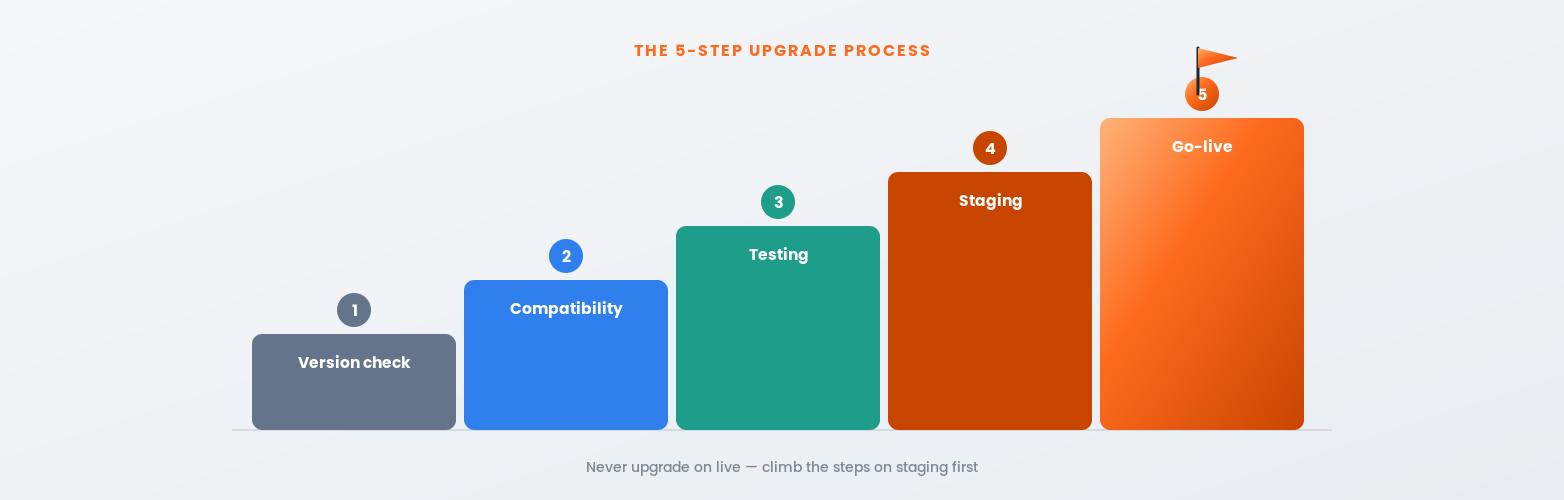
To upgrade Magento 2 or Adobe Commerce safely, follow five steps in order. First, check your current version and edition and target the latest supported 2.4.x release. Second, audit compatibility of your extensions, custom code, environment and integrations, and produce a written checklist, this is the make-or-break step. Third, on a staging copy, update extensions, rework changed code and test every critical path from checkout to admin. Fourth, run the full upgrade on a staging environment that mirrors production. Fifth, deploy to live in a low-traffic window with a verified backup and a rollback plan, then monitor closely. The golden rule: never upgrade directly on your live store.
Common questions about upgrading Magento. Get in touch if yours is not here.
Follow five steps in order: check your current version and target the latest supported 2.4.x release; audit compatibility of extensions, custom code, environment and integrations; on a staging copy, update and test everything; run the full upgrade via Composer on staging; then deploy to live in a low-traffic window with a verified backup and rollback plan. Never upgrade directly on your live store.
Because unsupported versions stop receiving security and quality patches, leaving known vulnerabilities unfixed and putting your PCI compliance at risk, since PCI DSS requires supported, patched software. Upgrades also bring performance gains, PHP and dependency compatibility, new features and support for current extensions. The longer you leave it, the bigger and riskier the eventual jump.
It depends on the size of the jump and how customised your store is. A minor patch within the same minor version can take a day or two; moving up several versions on a heavily customised store with many extensions can take weeks, because the audit, code rework and testing are the time-consuming parts, not the upgrade command itself. The analysis and testing should never be rushed.
You can upgrade straight to the latest supported release rather than stepping through every version in between, and that is usually the goal, but large jumps carry more risk and often require intermediate environment updates such as PHP and database versions. The bigger the gap, the more the project resembles a small migration, so the audit and staging testing matter even more.
It can, if you skip the compatibility audit. Outdated extensions and custom code that relies on changed or deprecated APIs are the most common cause of upgrade failures. That is exactly why you audit every extension, theme and custom module against the target version first, update or replace what is incompatible, and test it all on staging before going live.
Yes, without exception. Upgrading directly on your live store risks taking down sales, checkout and payments if anything goes wrong. A staging environment that mirrors production lets you run and test the entire upgrade safely, fix issues before customers ever see them, and rehearse the exact go-live steps. It is the single most important safeguard in the whole process.
Magento Open Source and Adobe Commerce are on the 2.4.x release line, with new minor and patch releases published regularly. Rather than fixating on a specific number, target the latest supported release available for your edition at the time you upgrade, and check Adobe’s official documentation for the current version and its exact system requirements before you begin.
A minor patch on a simple store can be handled in-house by a capable developer. A larger jump, a heavily customised store, or anything involving payments and many integrations is worth doing with a specialist, because the audit, code rework and testing are where things go wrong. An agency also brings a proper staging setup and rollback discipline, which protects your revenue during the change.
→Magento security in 2026: threats store owners must know
→eCommerce platform migration without losing rankings
Source: Adobe Commerce, Upgrade Guide Overview.
By the 5MS team, UK eCommerce agency and Adobe Solution Partner. Last updated: July 2026.